Inviting your team
Adding people, what an invitation does, and deactivating someone who leaves.
All help topics
Everyone who uses DoneWell for your company is a member with a role. Open Settings → Users to see the team.
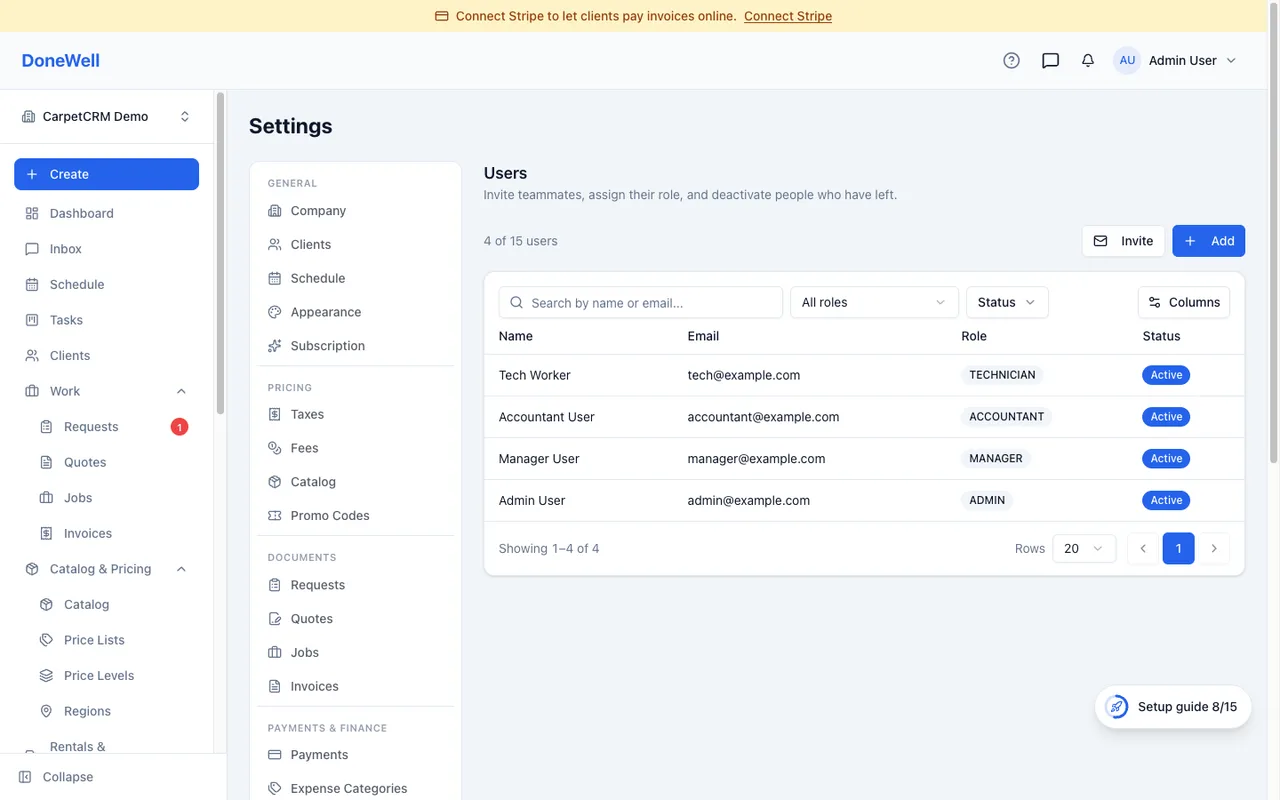
Inviting someone
Click Invite and enter their email and role. They receive an email with a link that creates their account (or adds your company to an account they already have). The invitation counts as a seat until it is accepted or revoked, and it expires after a few days — Resend sends a fresh one.
If you prefer to set someone up in person, Add user creates the account with a password you give them; they sign in right away and are asked to confirm their email when they can.
Seats and your plan
Your plan includes a number of users. On plans with per-user pricing, extra members are simply billed; on plans with a fixed cap, the invite button explains when the cap is reached and where to upgrade.
Pay rates and details
A member's page holds their contact details, the crews they belong to, and — if you use payroll — their pay type and rate. Only people with the payroll permission see rates.
When someone leaves
Deactivate the member. They are signed out within minutes, their seat is freed, and everything they did (visits, hours, notes) stays in place under their name. Reactivate them later if they come back — nothing is lost.
Each member also has a personal page under Profile for their own password, avatar and notification preferences.
Missing something? Every guide is short on purpose — write to support@donewellapp.com and we will add it.