The calendar
Reading the schedule, moving visits, and finding time for new work.
All help topics
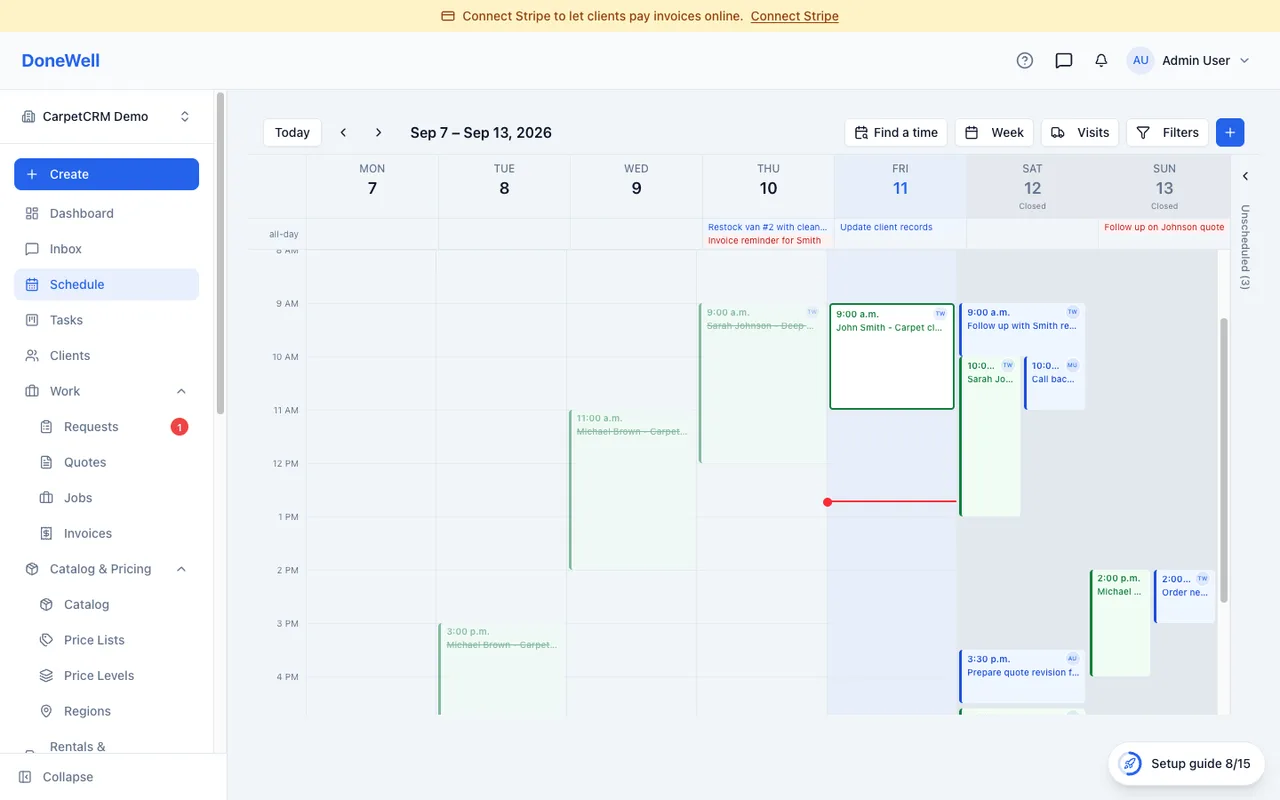
Schedule is the calendar of everything with a time: visits, assessments, tasks and reminders. It is where the day is planned and where the crew looks in the morning.
Views
Switch between Month, Week, Day, List and Map in the toolbar. Day view lays the team out side by side so you can see who is free; Map view plots the day's visits so you can order them by distance. The date picker and the arrows move through time; Today brings you back.
Filters
Filter by team member, crew or type of item. A filter you set stays until you clear it, so a dispatcher can keep the calendar on their own crews. Settings → Schedule sets the default view, working hours and which day starts the week.
Moving and creating
Drag a visit to another time or day to reschedule it; drag its edge to change the duration. Click an empty slot to create a visit, a task or a reminder right there. Colours follow the visit's status — scheduled, in progress, completed — so a glance shows how the day is going.
Unscheduled work
The Unscheduled panel on the right lists jobs and requests that still need a time. Drag one onto the calendar to book it; the visit is created with the job's crew.
Conflicts
When two visits overlap for the same person the calendar warns you when you save. It is a warning, not a block — two people from one crew on different jobs at the same time is normal.
Your own calendar app
Every team member can subscribe to their DoneWell schedule from Google Calendar, Apple Calendar or Outlook. The link is under Settings → Schedule; it shows only that person's visits and updates on its own.
Missing something? Every guide is short on purpose — write to support@donewellapp.com and we will add it.