Quotes
Creating a quote, sending it to the client, and what happens when they approve.
All help topics
A quote is your priced offer. The client approves it online, and the approved quote becomes the job.
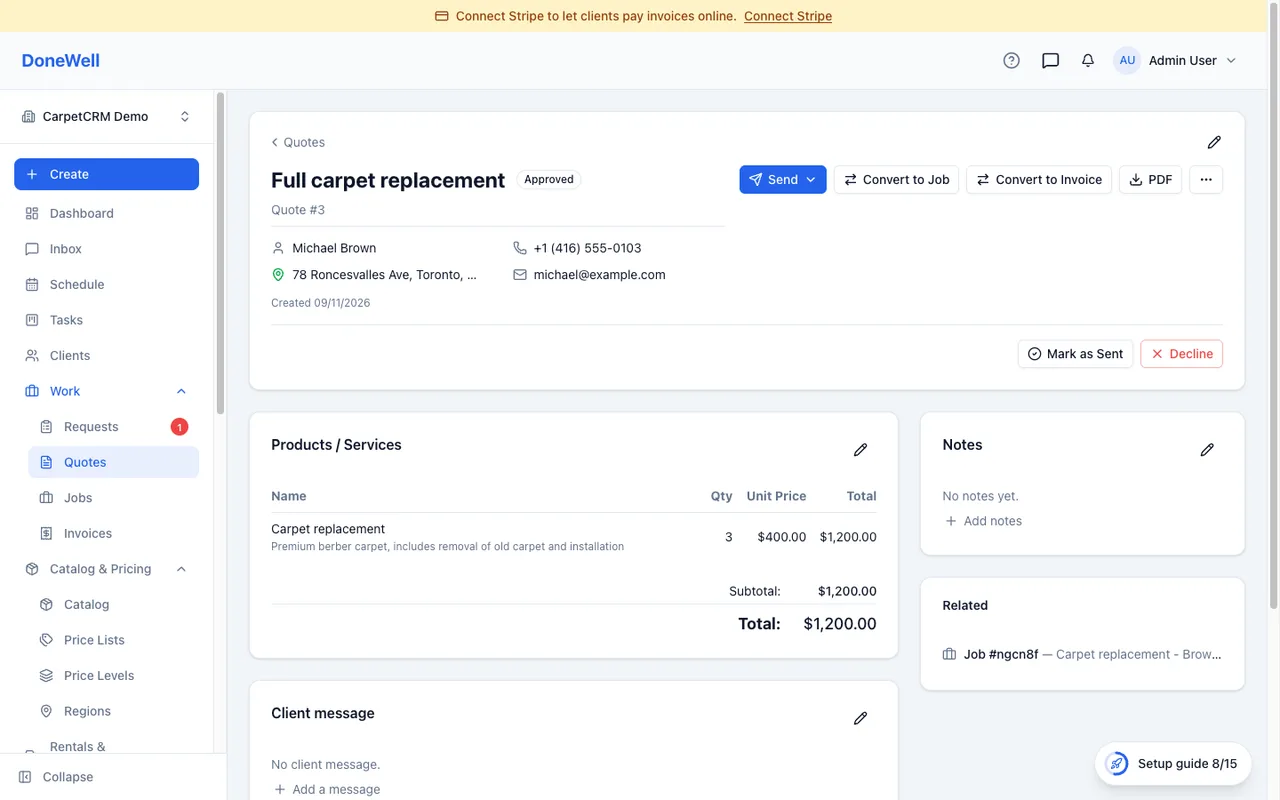
Creating a quote
Open Quotes → New quote. Pick the client and the property, then add line items from your catalog — quantity times price, with the tax and any fees calculated underneath. You can add a discount, a promo code and a deposit request, and write a message to the client that appears on the document.
Save the quote as a draft first if you are not ready to send it; nothing goes to the client until you click Send.
Sending
Send offers email or a text message. Both carry a link to the quote's own page, where the client sees the full document, can download it as a PDF, and can approve it. You can also print the PDF or copy the link and send it your own way.
The quote page shows when the client first opened it and when they approved, so you know where you stand without asking.
When the client approves
An approved quote is marked Approved and offers Convert to job. The line items, address and message carry over, and you schedule the visit from the job. If a deposit was requested, the client pays it at approval and it shows on the invoice later.
A quote the client did not take is marked Declined or Expired; it stays for the record. Duplicate makes a fresh copy of any quote, useful for a revised offer.
Editing after sending
You can change a sent quote until it is converted; the client sees the current version at the same link. Once a quote has become a job it is locked, so the job and the quote never disagree about what was agreed.
Missing something? Every guide is short on purpose — write to support@donewellapp.com and we will add it.