Clients
Adding a client, what a client record holds, and how to find one later.
All help topics
A client is a person or a business you do work for. Everything else — requests, quotes, jobs, invoices, payments — hangs off a client, so it is the first record you create for new work.
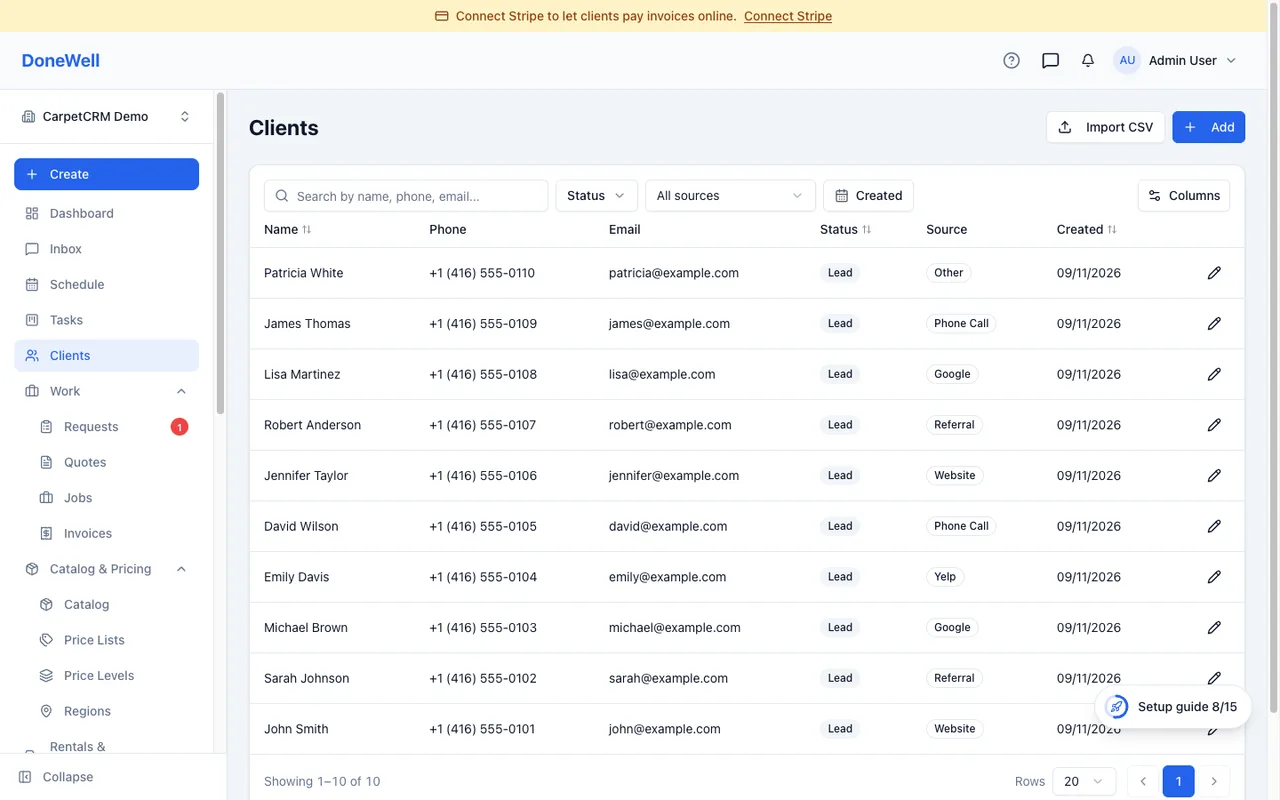
Adding a client
Open Clients and click New client. Name and at least one way to reach them (phone or email) is enough to start; you can fill in the rest later. If the client is a business, switch the record to Company and add the people you deal with as contacts.
The same form opens when you type a new name inside a quote or a job — you never have to leave the document to add the person it is for.
What the client page shows
The client page collects everything about that client in one place:
- Contact details — phones and emails, with one marked as primary. Messages and receipts go to the primary ones.
- Properties — the addresses you service for this client. A client can have several; each document picks one.
- History — every request, quote, job, invoice and payment for this client, newest first.
- Notes and tags — anything your team should know, and labels you use to group clients.
- Preferences — whether the client has agreed to automated text reminders and email updates. Documents you send by hand are not affected by this switch.
Each block has a pencil icon; edit it in place and save.
Finding a client
The search box on the Clients list matches names, phone numbers and emails. Filters narrow the list by tag or status.
Importing a list
If you are moving from another system, Import on the Clients list takes a CSV file. Map the columns once; the import shows what it will create before anything is saved.
Missing something? Every guide is short on purpose — write to support@donewellapp.com and we will add it.